 NextFloorv0.36.0.3
Quick start
By the end of this page you will have a floor with one room, a lamp that belongs to a real light in Home Assistant, and a 3D view you can tap. Nothing needs preparing except an area in Home Assistant with at least one light in it.
Tip
Prefer to watch first? The setup video draws a whole house from the empty page (45 minutes, English voice, subtitles in English and German). Or try the live demo with invented data.
Before you start#
- NextFloor is installed and you are logged in as an administrator.
- In Home Assistant, the room already exists as an area (Settings → Areas) and a light belongs to it.
Draw and light your first room#
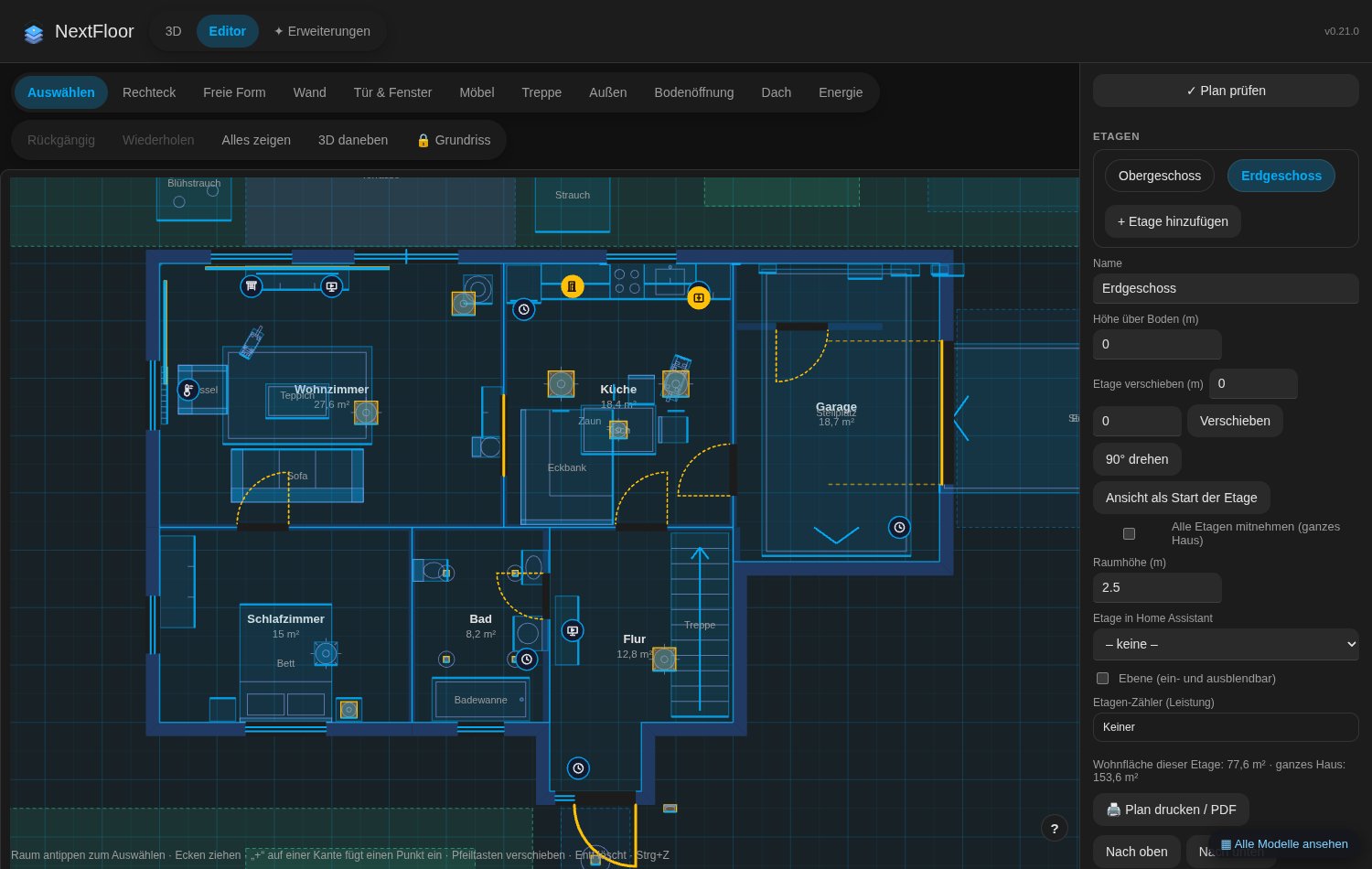
- Open the Editor. In the NextFloor sidebar entry, switch to the Editor tab. The toolbar holds the tools, the side panel shows what is selected, and a hint at the bottom names what the active tool does.
- Add a floor. Press Add floor. It offers the floors of Home Assistant (this keeps plan and Home Assistant connected) or an Empty floor. Pick one.
- Draw a room. Choose the Rectangle tool and drag on the plan. Corners snap to the grid.
- Describe it. In the side panel give the room a name, pick its Area (this is the link to your devices), and choose a floor material.
- Add a door and a window. Choose Doors & windows, tap a wall, and pick the kind. Set width and position if the defaults do not fit.
- Furnish. Choose the Furniture tool, tap the room and pick a sofa, a bed or a lamp from the library on the right. New pieces appear in the middle of the room; drag them into place.
- Place your light. Open the room and scroll to Devices. Your area's devices are listed. Press Place on a light: it becomes a lamp in the room.
- Look at it in 3D. Switch on 3D beside, or leave the editor and open the 3D tab.
Tap the lamp: the real light switches. Swipe on it to dim, and long-press for colours.
Note
Undo (Ctrl+Z) takes back almost everything. If saving ever fails, your changes stay in this browser and the editor tells you why.
Where to go from here#
- Draw the rest of the house: Draw the house.
- Make it look like home: Furnish.
- Bring in the rest of your devices: Connect devices.
- Put it on a dashboard or a wall tablet: The dashboard card.