 NextFloorv0.36.0.3
Furnish
Choose the Furniture tool, tap a room, and pick from the library on the right. New pieces appear in the middle of the room.
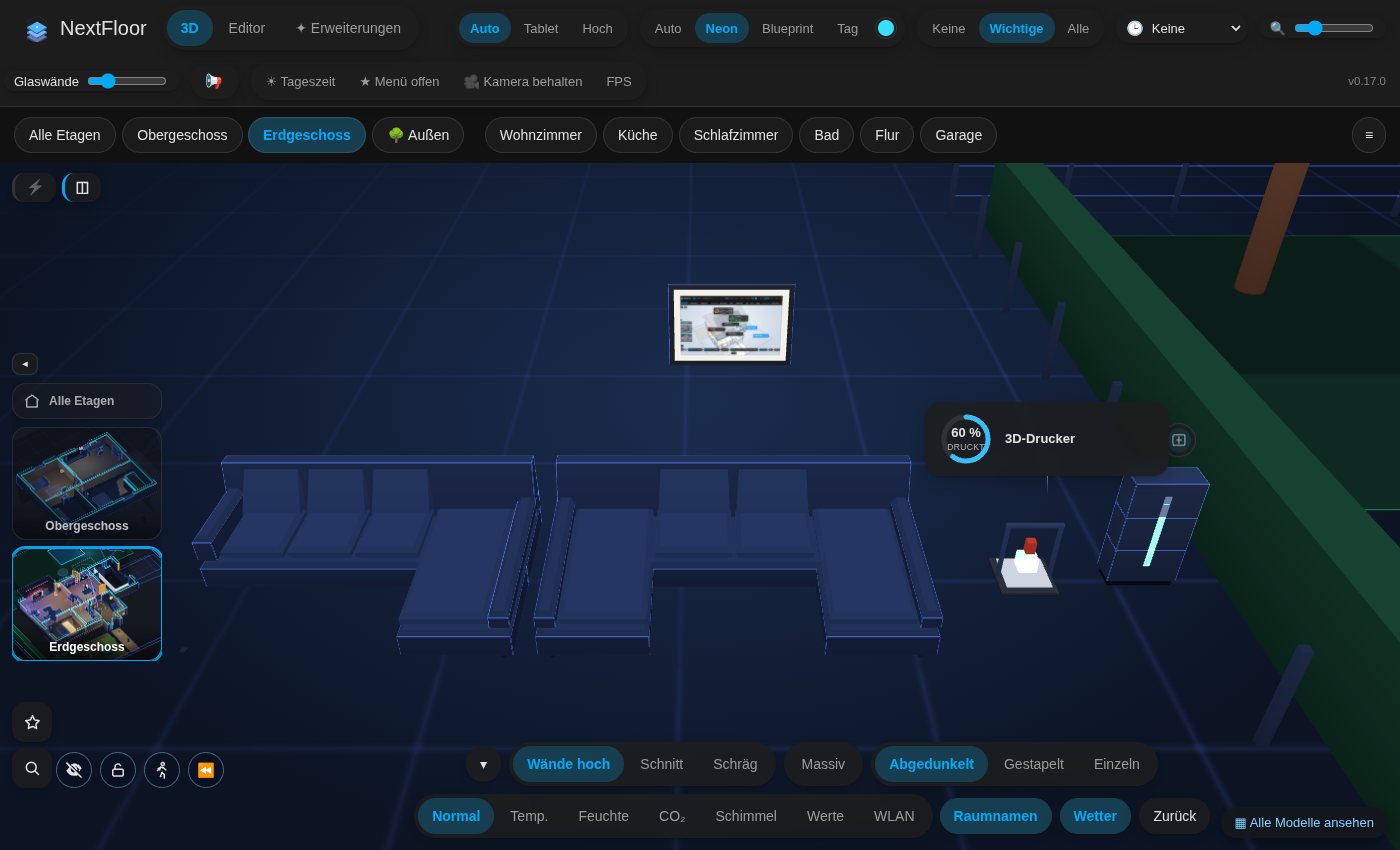
The library#
- It has sections (lights, living, dining, kitchen, sleeping, bath, work, parking) followed by the furniture packs. NextFloor ships 40 basic models and 43 packs with about 800 more.
- The search finds German and English names, pack names and several words in any order.
- Furniture is sorted by kind (seating, beds, kitchen …) with a picture and its size. A model that comes in several sizes is one card with size chips.
- With a room selected, what fits it comes first (Fits …). Show all rooms lifts that.
- Filters: ⚡ can be linked to a device, 💡 glows, 🌳 outdoors. ★ Favourites and Recently used sit on top.
Move, resize, copy#
- Drag to move, drag the corners to resize, use the turn handle, or type position, size and rotation.
- Mirror flips left and right. Duplicate copies. Fix locks a piece. Move to floor takes it to the same spot on another floor.
- Resizing keeps legs, arms, plates and handles at their real size; only the middle grows.
- Tilt: Tilt front/back and Tilt sideways (degrees) lean a ladder, tilt a picture or follow a sloped shelf. Owned 3D models are not tilted.
- Place spots: a room's Place spots lays out a grid of lamps (columns × rows) that all follow one light, undoable in one step.
- Wall view (▣): in a room's wall list, Wall view shows a wall from the front with its doors, windows and the furniture against it. Drag, or type the distance and height.
The furniture studio#
🛠️ Build your own piece sits at the top of the library.
- Pick a template: cabinet, shelf, lamp or device.
- Type the measurements in centimetres and set doors, drawers, boards, handles, base and colours. The front view follows every change.
- Put in the plan stores it in the pack Own furniture, so it also shows in the library.
To change it later, select the piece and press Change in the studio. Every copy in the plan takes the new size.
Need something the studio cannot make? The browser-based furniture builder builds a model exactly as NextFloor draws it, and you can share it. See Furniture packs.
Special pieces#
Lamps#
Lamps are furniture with a light behind them; the lights section has twelve kinds. Link them as described in Connect devices.
Light switches and sockets#
In the smart home pack, 1- to 4-gang. Each button has its own entity and glows while what it switches is on.
Awnings, curtains, blinds, screens and gates#
Moves with picks the cover entity the piece follows. Reverse the direction turns it round for things that move the opposite way in the plan than in reality.
Sofas#
The built-in sofa has a Shape: straight, L (mirror it for the other side) or U.
Picture frames#
From the pack Pictures & frames: upload a photo in the form, type a picture address (/local/…) or pick an image or camera entity. The mat and whether the photo fills the frame are adjustable.
Show only while …#
Any piece can wait for an entity: the Christmas tree only while a helper is on. Use several states separated by commas, or the other way round. The editor always shows the piece.
Under the roof slope#
Ceiling lamps and hanging pieces in an attic room have 📐 Up to the roof slope.
Seasonal decoration#
The packs Winter & Christmas and Halloween come with glowing parts that follow a light or switch you link. Combine them with Show only while … to show a decoration only in its season.
Layers and floor meters#
- Layers: a floor marked Layer in its form (the trees, the decoration) gets an eye at the top of the 3D view that shows or hides it.
- Floor meter: Floor meter (power) in the floor form takes a power sensor for that floor alone. Its value shows on the floor label, and the house card in that floor's view shows it with its share of the house.
Move the pin#
Pins of devices that stand close together can be pushed aside or up in the form; the device itself stays where it is.